
How to Set Up an AI Email Triage Agent for Ops Teams
Impleko AI · 10 min read
Learn how operations teams can set up an AI agent to sort, label, draft replies to, and route a shared inbox, with human review before anything sensitive is sent.
Key Takeaways
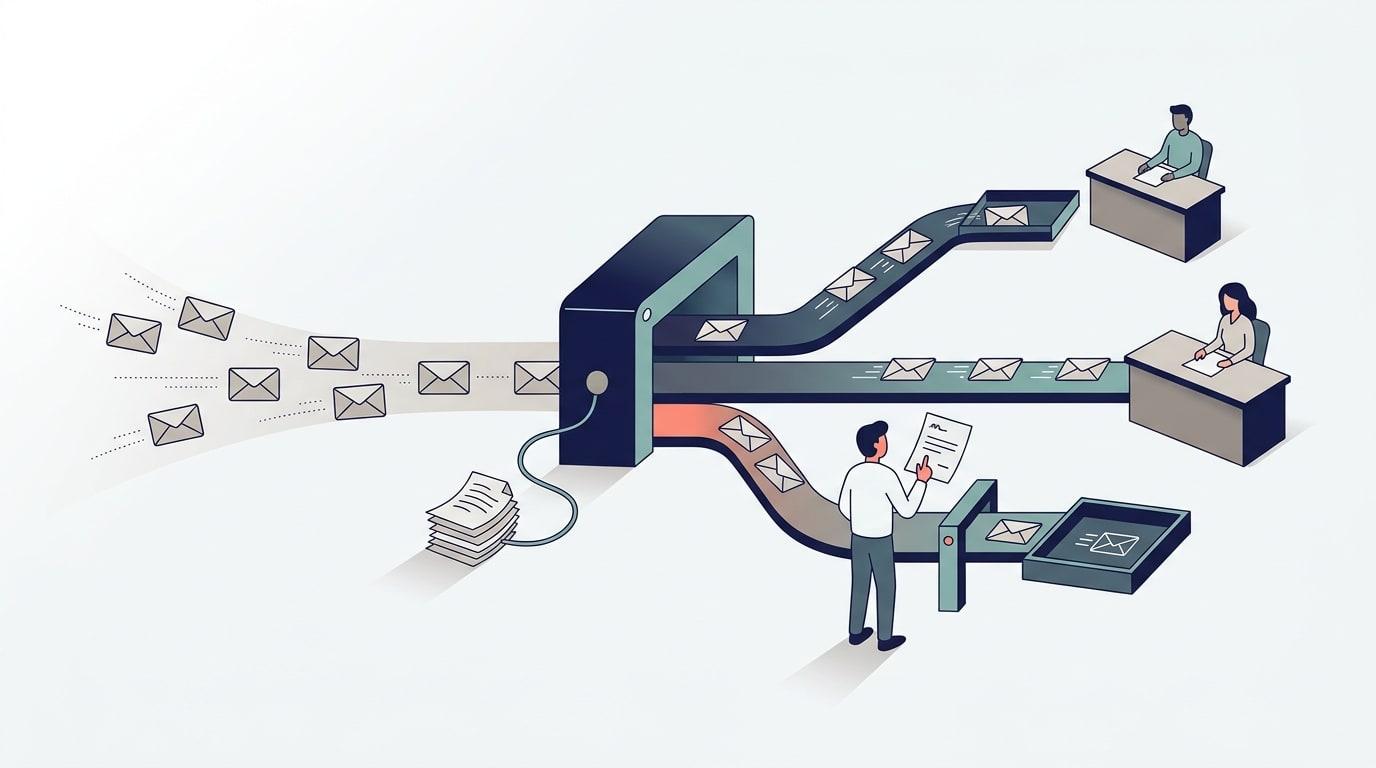
- An AI email triage agent reads each incoming message in a shared inbox, labels it, drafts a reply, and routes it to the right person or queue. A human approves anything sensitive before it goes out.
- Start with a one-week audit of your real inbox. The labels, routing rules, and approval tiers you define from that audit matter more than which AI model you pick.
- Use plain rules for the predictable parts (known senders, exact keywords) and the language model for the messy parts (intent, tone, drafting from your knowledge base).
- Run the agent in shadow mode first, where it suggests and humans act, then loosen review only for low-risk categories that prove accurate.
- A working first version with n8n, Make, or Zapier plus Claude or OpenAI is typically a matter of weeks, not months.
What is an AI email triage agent?
An AI email triage agent is software that watches a shared inbox (such as support@, ops@, or orders@), uses a large language model to understand each message, and then labels it, drafts a reply, and routes it to the right owner. Operations teams use it so people stop sorting mail and start resolving it.
The word "agent" matters. A simple filter only matches keywords. An agent reads the whole message, decides what the sender wants, checks your knowledge base or systems for facts, and takes a defined next step. The next step is always bounded: label, draft, assign, or escalate.
Here is the pain it targets. A vendor invoice dispute sits under a pile of newsletters for two days. A customer's urgent change request is answered by the one person who did not own it. Someone on your team spends the first hour of every morning dragging emails into folders.
What does the agent actually do to a shared inbox?
The agent performs four jobs on every message: classify it, extract key details, draft a reply, and route it. Each job produces a visible output, such as a label, a field, a draft, or an assignment, so a human can check the work at any point.
| Job | What it produces | Example |
|---|---|---|
| Classify | A category and urgency label | "Billing dispute, high urgency" |
| Extract | Structured fields from the text and attachments | Order number, invoice amount, due date |
| Draft | A suggested reply grounded in your documents | Reply citing the refund policy |
| Route | An assignment or queue placement | Assigned to accounts receivable lead |
Extraction is the most underrated job. When the agent pulls an order number or invoice date into a field, your team can act without opening three tabs. This is the same document data extraction approach that Impleko AI uses in back-office automation.
How do you set up an AI email triage agent step by step?
Setup follows six steps: audit the inbox, define labels and routing, connect the mailbox, build the classify-and-draft step, add a human review gate, and test in shadow mode. Skipping the audit and the shadow test is the most common reason these projects disappoint.
Step 1: What should you audit before building anything?
Audit one to two weeks of real emails and sort them by hand into categories. The goal is to find the five to ten message types that make up most of your volume, plus the rare ones that carry the most risk.
For each type, note who handles it today, how fast it needs an answer, and whether a reply is templated or requires judgment. Keep a short list of "never auto-send" cases, such as legal threats, refund exceptions, and anything involving health or financial data.
Step 2: How do you define labels and routing rules?
Define a small, mutually exclusive label set, usually under twelve, and map each label to an owner and a response target. Too many labels make the model inconsistent and make routing brittle.
| Label | Owner | Review tier |
|---|---|---|
| Order status | Fulfillment queue | Auto-draft, light review |
| Vendor invoice | Accounts payable | Human approves every reply |
| Scheduling request | Coordinator | Auto-send from approved templates |
| Complaint or escalation | Team lead | Human writes or approves |
| Spam or newsletter | None | Auto-archive |
Always include an "unsure" label. When the agent is not confident, sending the email to a person is the right answer, not a forced guess.
Step 3: How do you connect the inbox?
Connect the shared mailbox through Gmail or Microsoft 365 using an automation platform such as n8n, Make, or Zapier. A new email triggers a workflow that passes the subject, body, sender, and attachment text to the model.
Use a dedicated service account with the minimum permissions needed: read, label, and create drafts. Do not give the agent permission to send from day one. Drafts-only access is a built-in safety rail.
Step 4: How do you build the classify and draft step?
Send each email to a model such as Claude or an OpenAI model with a prompt that lists your labels, definitions, and examples, and ask for structured output (label, urgency, extracted fields, confidence). Then run a second call that drafts a reply using retrieved context.
Ask for JSON, not prose, so the workflow can act on the result reliably. Include three to five real examples per label in the prompt. Examples from your own inbox usually improve consistency more than longer instructions do.
Step 5: Where does the human review gate go?
Put the gate between the draft and the send. Low-risk categories can pass through with a quick glance or a sample audit, while sensitive categories always stop for explicit approval from a named person.
Practically, this means the agent writes the draft into the email client or a Slack or Teams message with Approve, Edit, and Reject buttons. This pattern is called human in the loop. Every edit a reviewer makes is a free signal about what the prompt or knowledge base is missing.
Step 6: How do you test before going live?
Run in shadow mode for one to two weeks. The agent labels and drafts every email, but humans handle mail as usual and compare their decisions with the agent's suggestions.
Track how often the label matched, how often the draft was sent unchanged, and which categories produced the worst misses. Fix the prompt, labels, or documents, then promote categories to live one at a time.
Which emails should a human always review?
A human should always review emails involving money movement, legal or contractual language, regulated data, upset customers, and anything the agent flags as low confidence. The test is simple: if a wrong reply would be costly or hard to undo, a person approves it.
| Risk level | Examples | Handling |
|---|---|---|
| Low | Scheduling, order status, receipt confirmations | Auto-send from templates, audit a sample |
| Medium | Vendor questions, policy explanations | Agent drafts, human approves in one click |
| High | Refund exceptions, legal, compliance, health or financial data | Human writes or edits, agent only summarizes |
In healthcare and banking especially, check your privacy and compliance obligations before routing any message content to an external model. Where needed, redact identifiers first or use a deployment that meets your requirements.
When should you use a plain rule instead of AI?
Use a plain rule when the signal is exact and stable, such as a known sender domain, a fixed subject prefix, or an order-number pattern. Rules are cheaper, faster, and fully predictable, so they should handle everything they can.
A good design is layered. Rules catch the obvious cases first (auto-archive a known notification sender, route a specific partner to a specific owner). The language model handles whatever remains, where meaning matters more than keywords.
How do you stop the agent from making things up in replies?
Ground every draft in your own documents using retrieval augmented generation (RAG). The agent first searches a knowledge base of policies, FAQs, and past approved replies, then writes the draft using only what it found.
Instruct the model to say "needs human answer" when the documents do not cover the question. A knowledge base assistant built this way, like the ones Impleko AI builds, cites its source passage in the draft, which lets a reviewer verify the claim in seconds. Retrieval is usually the better first choice over fine-tuning here, because updating a policy means editing a document, not retraining a model.
Which tools do you need?
You need a mailbox, an automation platform, a language model, a knowledge store, and a place for approvals. Most teams can assemble these from tools they already use.
| Layer | Common options |
|---|---|
| Mailbox | Gmail, Microsoft 365 |
| Workflow engine | n8n, Make, Zapier |
| Language model | Claude, OpenAI models |
| Knowledge base | Google Drive or Notion docs indexed for retrieval |
| Approvals | Slack, Teams, or helpdesk drafts |
| Downstream systems | CRM, helpdesk, ERP, GoHighLevel |
n8n suits teams that want more control and self-hosting, while Make and Zapier are faster for simple flows. If your inbox feeds a CRM or lead pipeline, the same workflow can create the contact record and trigger follow-up, which is where GoHighLevel automation often fits.
How long does it take and what does it cost?
A focused first version covering one inbox and a handful of labels usually takes a few weeks, including the audit and shadow period. Ongoing costs are model usage, the automation platform, and a small amount of maintenance time.
Say, for example, an operations inbox gets 200 emails a day and each takes two minutes to sort and route by hand. That is roughly 6.5 hours of handling daily before a single reply is written. If the agent correctly labels and routes most of them, the team's time shifts to resolving. These numbers are illustrative, so use your own audit data.
Impleko AI builds triage agents like this with the review gate and shadow-mode testing included. A proof of concept on one inbox is a sensible way to see real accuracy on your own mail before committing further.
How do you know the agent is working?
Measure label accuracy, the share of drafts sent without edits, time to first response, and the number of emails that needed rerouting. Review the "unsure" bucket weekly, because it shows exactly what to teach the system next.
Also track misses that matter: any high-risk email that was not escalated. One of those outweighs a hundred correct labels, so treat it as a prompt or rule bug and fix it the same day. Over time, expand auto-send only for categories with a consistently high unedited-draft rate.
Frequently Asked Questions
What is an AI email triage agent?
An AI email triage agent is software that reads incoming emails in a shared inbox, labels them, drafts replies, and routes them to the right person or queue. A human reviews anything sensitive before it is sent.
Can an AI agent send emails without human approval?
It can, but it should only do so for low-risk, predictable categories such as scheduling confirmations or order status from approved templates. Anything involving money, legal language, regulated data, or upset customers should require human approval.
Do I need to code to set up an email triage agent?
Not necessarily. Tools like n8n, Make, and Zapier connect Gmail or Microsoft 365 to Claude or OpenAI models with little or no code, though complex routing and retrieval are easier with an engineer's help.
How do I stop the AI from giving wrong answers in replies?
Ground drafts in your own documents using retrieval augmented generation, and instruct the model to escalate when the documents do not cover the question. Showing the source passage next to the draft lets reviewers verify it quickly.
Should I use rules or AI to sort my inbox?
Use both. Plain rules handle exact, stable signals such as known senders and fixed subject patterns, while the language model handles messages where intent and context matter.
How long does it take to launch an AI email triage agent?
A first version for one inbox with a small set of labels usually takes a few weeks, including an audit and a shadow-mode test period. Timing depends on how many systems it connects to and how much review logic you need.